Windows 10 End of Support: A Business Guide to Planning Your Next Steps
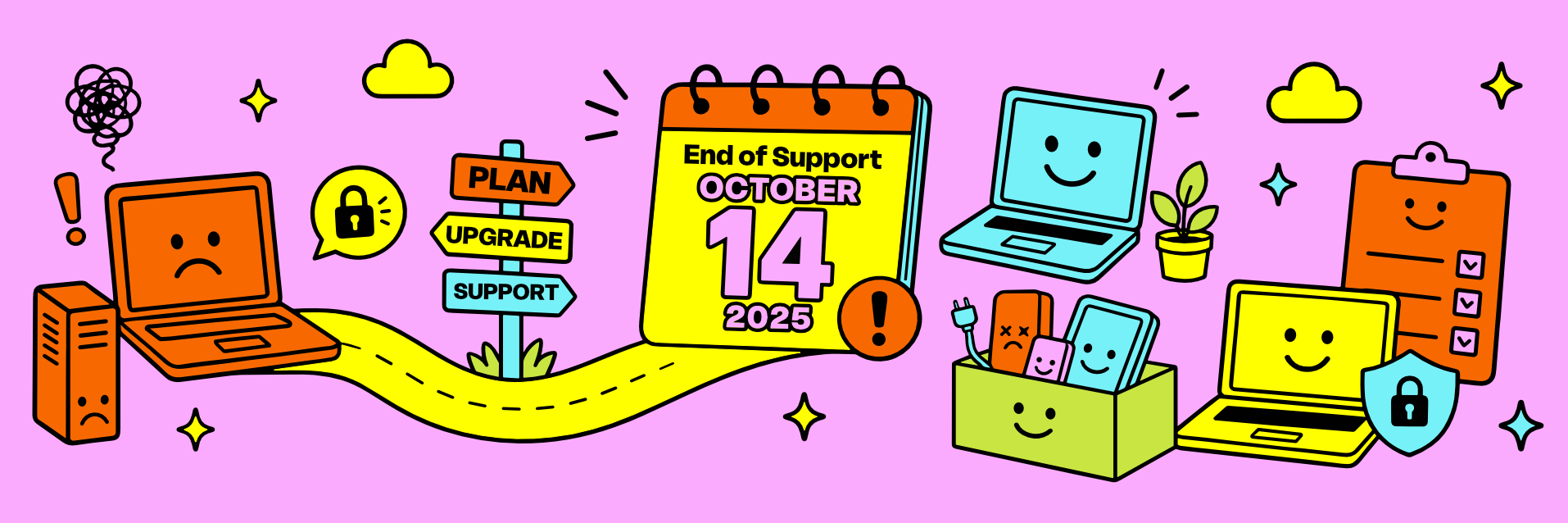
For many businesses, the end of Windows 10 support isn't just another software update.
It's the moment years of technology decisions suddenly come due.
The good news is that Windows 10's end of support doesn't have to become an operational headache.
Can you still use Windows 10 after support ends? Should you upgrade existing computers to Windows 11? Replace older laptops? Keep using Windows 10 for a little longer? Replace everything at once? Or spread upgrades over the next year?
For organizations throughout Syracuse, Central New York, and across New York State, these aren't hypothetical questions, they're decisions happening right now.
With a little planning, it can become an opportunity to modernize your technology, improve security, clean up years of accumulated equipment, and finally establish a healthier technology lifecycle for your business.
Can You Still Use Windows 10 After Support Ends?
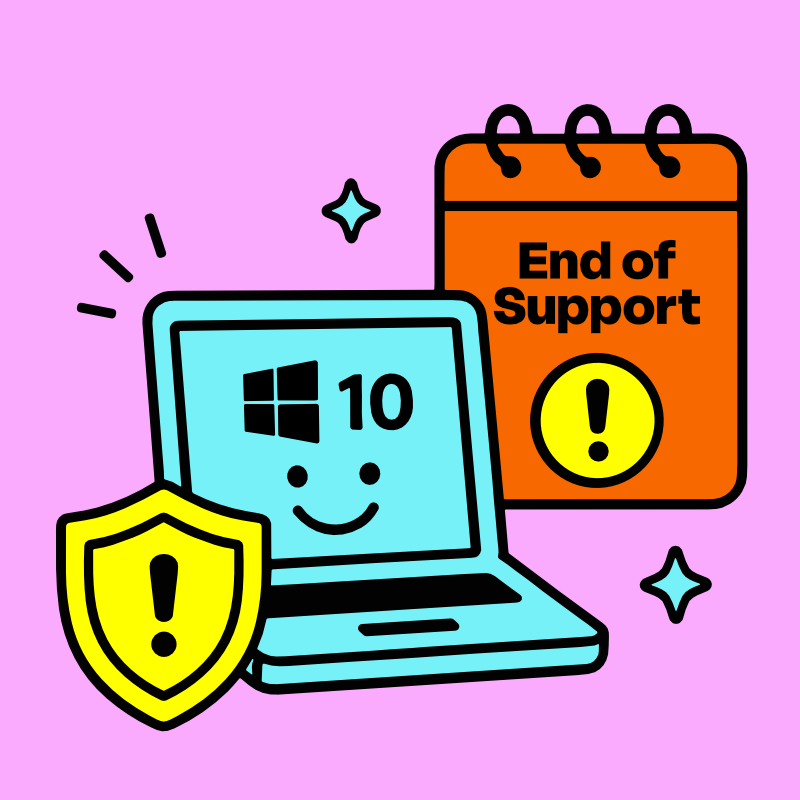
Yes. Windows 10 will still work after support ends.
One of the biggest misconceptions is that your computer will suddenly stop working.
Don’t worry, it won't: Your computer will still turn on. Your files will still be there. Most of your software will continue running exactly as it did the day before.
What changes is Microsoft's ongoing support.
After Windows 10 reaches end of support, Microsoft no longer provides the regular security updates, bug fixes, and technical support that businesses have relied on for years.
That doesn't immediately make every Windows 10 computer unsafe.
But the longer you continue using Windows 10 without ongoing security updates, the greater the potential security risk becomes. For businesses, an unsupported operating system can also create compliance concerns and make it more difficult to meet internal IT policies.
How Do I Know If My Computers Are Compatible With Windows 11?
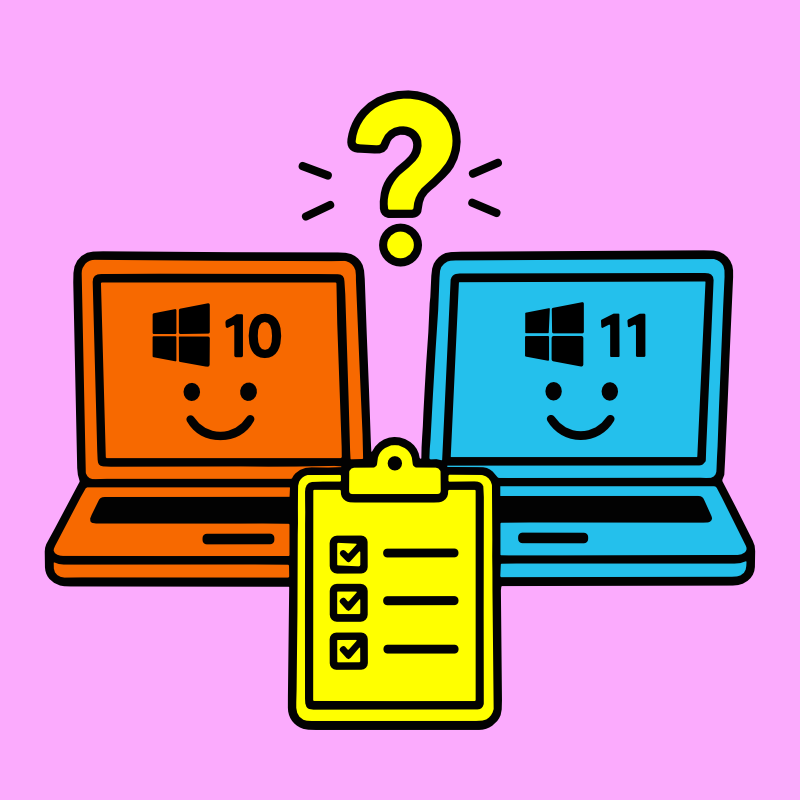
One of the biggest surprises for many businesses is discovering that age isn't always the deciding factor.
Microsoft introduced new hardware requirements for Windows 11, including support for TPM 2.0, Secure Boot, and a relatively modern processor.
That means two computers purchased only a year or two apart may have very different upgrade paths.
Some older business laptops perform beautifully but simply don't meet Microsoft's official requirements.
Others can move to Windows 11 with little more than a software upgrade.
Microsoft's PC Health Check app can help determine whether an individual computer meets the current Windows 11 system requirements. For businesses managing a larger fleet, this same compatibility review can help separate computers that can be upgraded from those that may need to be replaced.
Before budgeting for replacements, it's worth taking inventory of your existing equipment. Many organizations may discover they don't need to replace nearly as many computers as they expected.
Should You Replace Everything At Once?

Usually...no. And discovering that some computers can't upgrade to Windows 11 doesn't necessarily mean every computer needs to be replaced.
A little planning today often saves significant time, money, and frustration later.
One of the biggest mistakes businesses make is treating a Windows upgrade as an all-or-nothing project.
Critical employees receive new hardware first. Older computers nearing the end of their useful life are retired. Recently purchased systems are upgraded where possible.
Future replacement cycles are scheduled over the next 12 to 24 months instead of forcing one enormous capital expense.
Can Windows 10 Extended Security Updates Buy Your Business More Time?
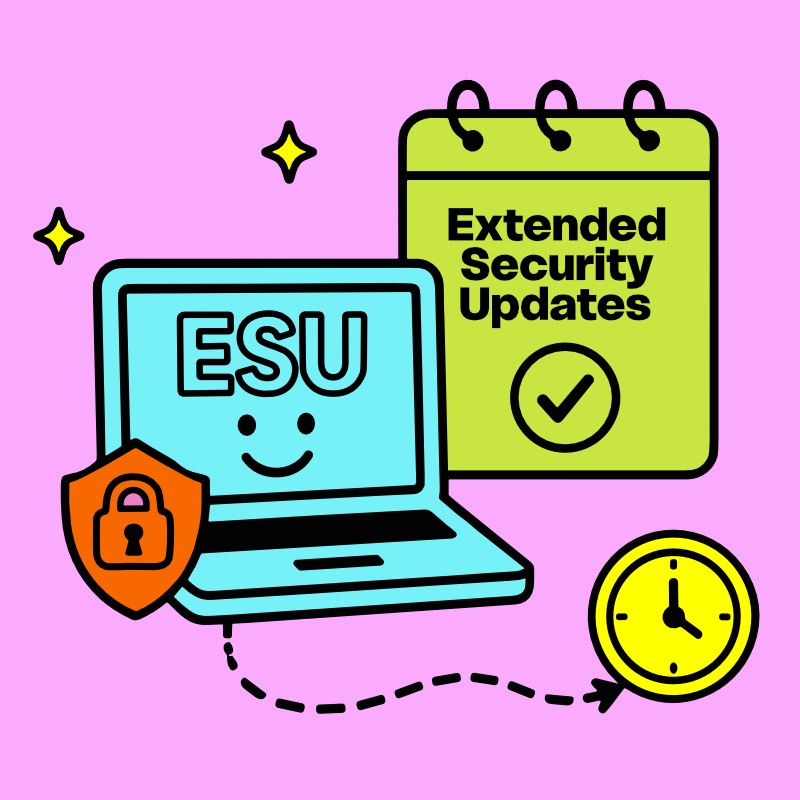
Some organizations simply aren't ready to replace every Windows 10 computer before support ends.
Microsoft offers an Extended Security Updates (ESU) program for certain customers, providing additional security updates beyond the normal support period.
For some businesses, ESU can provide valuable breathing room while budgets, software compatibility, or operational needs catch up.
But it should generally be viewed as a temporary bridge—not a long-term technology strategy.
Eventually, every organization will still need a plan for modernizing and retiring aging hardware.
Don't Forget the Computers Already Sitting in Storage

One of the biggest opportunities during a Windows refresh has nothing to do with the computers employees are currently using. It's the ones everyone forgot about.
Retired employee laptops.
Desktop computers from previous upgrades.
Equipment left behind after remote work transitions.
Old servers.
Boxes of loose hard drives.
Machines that have been sitting on a shelf "just in case."
We've walked into organizations throughout Central New York and found years of perfectly cataloged technology...
...and others where nobody was quite sure what was hiding in the storage room anymore.
A Windows refresh is the perfect opportunity to inventory everything your organization owns, not just what's currently plugged in.
Many businesses use this moment to pair their upgrade with an Office Technology Cleanout, an Office Relocation, or a broader review of their IT Asset Disposition process.
A New Computer Doesn't Make the Old One Safe
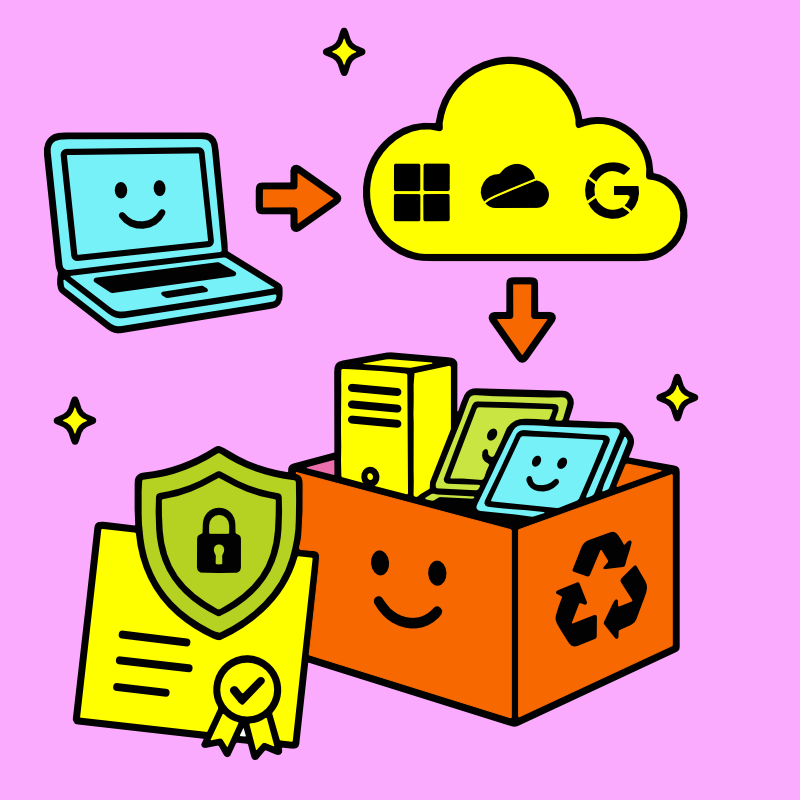
One of the easiest mistakes to make during a Windows upgrade is focusing entirely on the new computers arriving...
...while forgetting about the old ones leaving.
Even if your files have been successfully migrated to Microsoft 365, OneDrive, SharePoint, Google Workspace, or another cloud platform, the original computers often still contain years of business information.
Emails.
Financial records.
Customer information.
Employee files.
Passwords.
Saved browser credentials.
Local documents.
Cached data.
That's why migrating your information and securely retiring the old computer are two completely separate steps.
Every qualifying TechBack project includes FREE Secure Data Destruction before retired equipment continues through its next stage of processing.
Use This Opportunity to Improve More Than Your Operating System

Technology refreshes are one of the few times businesses naturally touch nearly every computer they own.
That makes them an excellent opportunity to:
Review your hardware inventory.
Remove devices that are no longer in service.
Verify backup procedures.
Confirm equipment assigned to remote employees.
Remove obsolete hardware from storage.
Update your asset management records.
Review your employee offboarding procedures.
Build a long-term replacement schedule instead of waiting for another major operating system deadline.
A successful technology refresh isn't just about installing Windows 11. It's about creating a healthier technology lifecycle moving forward.
The Greenest Computer Is Often the One That's Already Been Built

One of the hidden benefits of planning a thoughtful technology refresh is that it allows every computer to follow the most appropriate path.
Some systems are excellent candidates for continued service after a secure operating system upgrade. Others have reached the end of their useful life and should be professionally retired.
Whenever appropriate, extending the life of existing technology reduces the demand for newly manufactured equipment, conserving the energy and raw materials required to build new devices.
When reuse is no longer appropriate, we help raise the standards on recycling with our Zero Landfill Promise, ensuring retired equipment continues into responsible downstream recycling instead of becoming unnecessary waste.
You can learn more about the environmental impact on our Why Recycling Matters page.
Turn a Windows Upgrade Into a Fresh Start
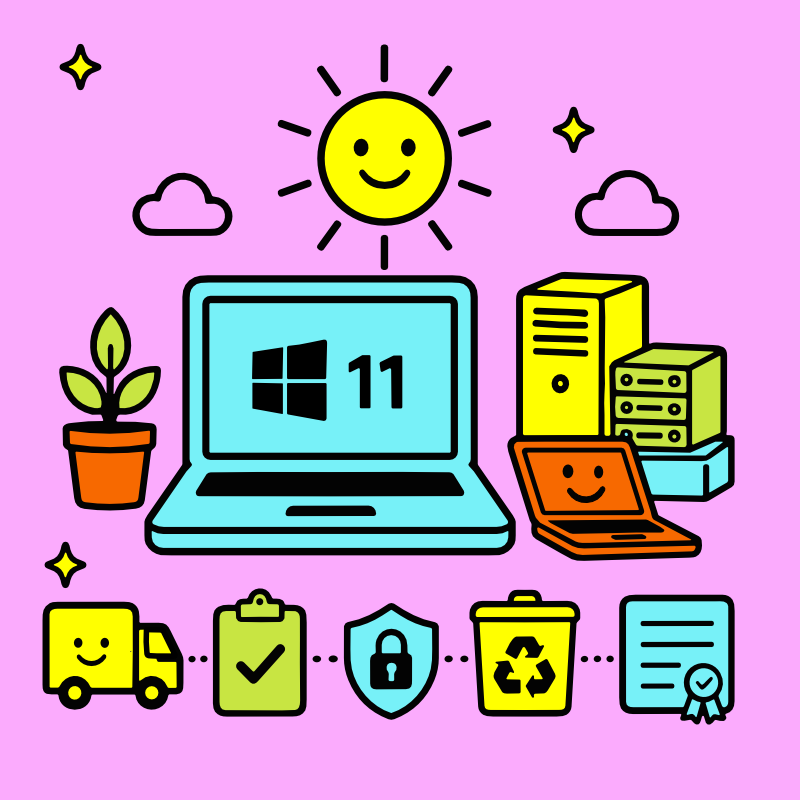
Windows 10's end of support isn't just about software.
It's a fresh opportunity.
Now’s the time to Improve security.
Modernize your hardware.
Clean up years of accumulated technology.
Strengthen inventory management.
Reclaim valuable office space.
And establish better technology practices for years to come.
Whether your organization is replacing ten computers or several hundred, TechBack helps businesses throughout Syracuse, Onondaga County, Central New York, the Finger Lakes Region, and across New York State securely retire outdated technology through FREE Business Pick-Up with documented Chain of Custody, FREE Data Destruction including Certificates, responsible zero-landfill Electronics Recycling, and complete IT Asset Disposition [ITAD] services.
Because a successful Windows upgrade isn't just about the computers you're installing.
It's about confidently retiring the ones you're leaving behind.
Windows 10 End of Support: Quick Answers
Can I still use Windows 10 after support ends?
Yes. Windows 10 computers will continue working, but without regular security updates, using an unsupported operating system can become increasingly risky over time.Do I need a new computer for Windows 11?
Not necessarily. Some existing computers meet Windows 11 requirements and can be upgraded, while others may need to be replaced based on hardware compatibility and your organization's needs.How do I know if my computer can run Windows 11?
Windows 11 compatibility depends on hardware requirements including the processor, TPM 2.0 and Secure Boot. Microsoft's PC Health Check app can help determine whether an individual computer meets the requirements.What if my business isn't ready to replace its Windows 10 computers?
Microsoft's Extended Security Updates may provide additional time for eligible organizations while they plan upgrades or replacements, but ESU is best treated as a temporary bridge rather than a permanent solution.